Overview
Matterport provides two different methods of capturing environments. Understanding when to use each one is essential for producing efficient, professional digital twins.
Although both capture imagery, they serve very different purposes and should be used appropriately during a project.
3D Scans
A 3D Scan records both:
- High-resolution photographic imagery
- Three-dimensional depth information
The depth information enables Matterport to build the digital twin and provides:
- Accurate navigation
- Dollhouse View
- Floorplan View
- Measurements
- Alignment with neighbouring scans
Because depth information is collected, 3D Scans become part of the navigable model.
For interior spaces and any area where users need to move naturally through the building, 3D Scans should always be used.
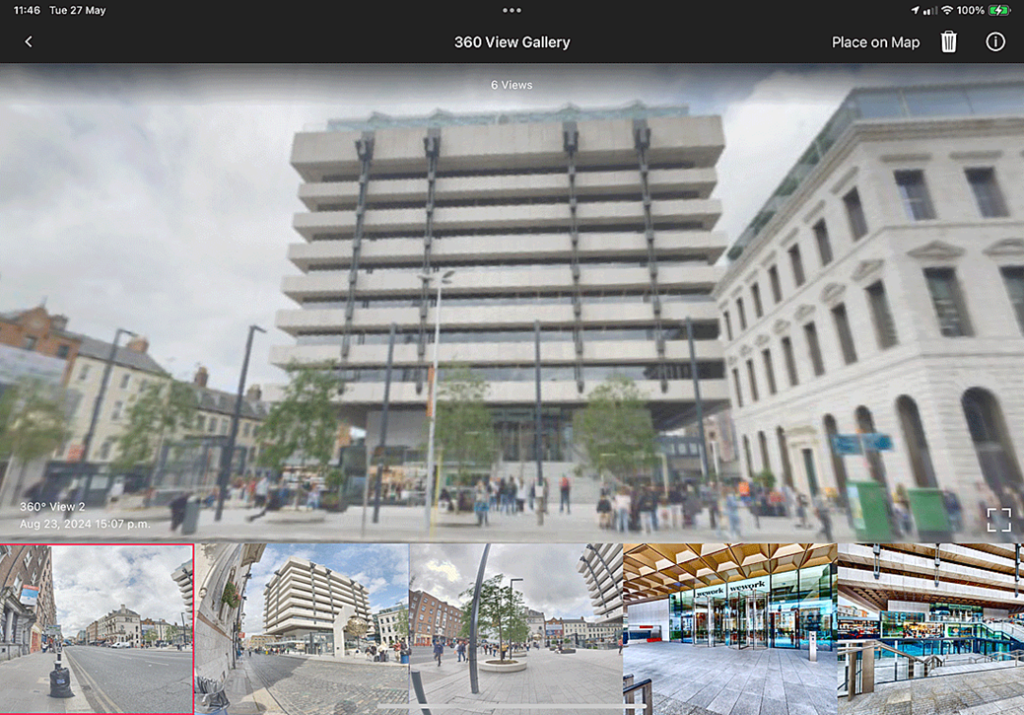
360 Captures
A 360 Capture records only photographic imagery.
No depth information is collected.
As a result:
- It cannot be navigated in the same way as a 3D Scan.
- It does not contribute to the Dollhouse.
- It cannot assist scan alignment.
- It is displayed as an individual photosphere connected to the model.
Think of a 360 Capture as a viewpoint rather than part of the building itself.
When Should You Use 360 Captures?
360 Captures are ideal for locations where creating full 3D geometry would be unnecessary or impractical.
Typical examples include:
- Gardens
- Large external areas
- Roofs
- Car parks
- Landscapes
- Construction sites
- Areas beyond the normal limits of Pro3 scanning
They allow viewers to understand the wider context without increasing the complexity of the model.
Creating a 360 Capture
During capture:
- Select 360 Capture instead of a standard scan.
- Position the camera in the desired location.
- Capture the panoramic image.
- Add a link connecting it to the nearest 3D Scan.
- Adjust the link location if required.
- Set the viewing direction to provide the best initial perspective.
The objective is to make the transition between the 3D model and the 360 Capture feel natural.
Editing After Upload
During post-production you can further refine the experience by:
- Adjusting the marker position
- Altering the viewing direction
- Changing the starting orientation
- Improving navigation between connected scans
These adjustments can significantly improve the user experience.
Scan Count
It is important to remember that 360 Captures count towards your project’s scan total in exactly the same way as standard 3D Scans.
When working close to subscription limits, include 360 Captures within your planning.
Best Practice
- Use 3D Scans wherever navigation is required.
- Use 360 Captures for contextual views.
- Avoid replacing necessary 3D Scans with 360 Captures.
- Position links carefully so users naturally understand where the 360 view was taken.
- Set the viewing direction before leaving site whenever possible.
Choosing the correct capture method improves model quality while keeping capture times efficient.