
Apply from each viewpoint
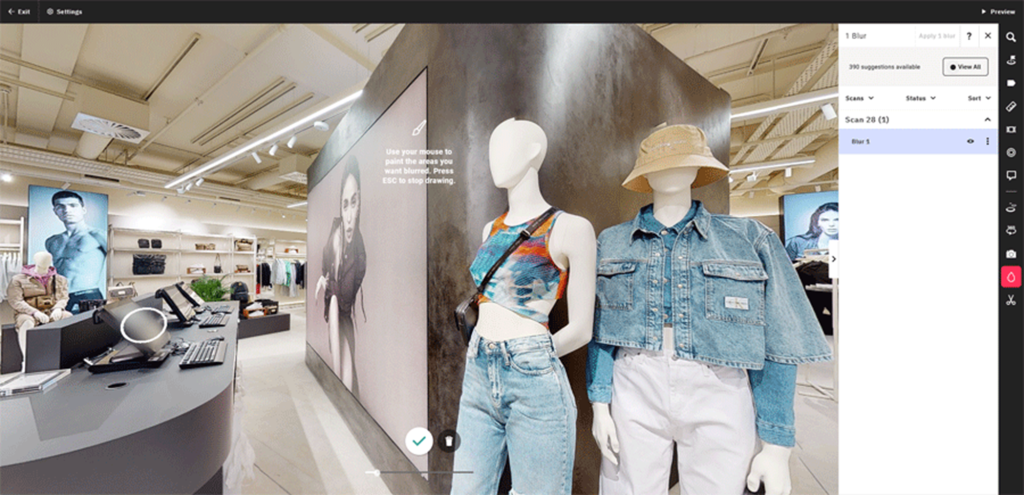
How to Use the Matterport Manual Blur Tool to Protect Sensitive Information
When creating a Matterport digital twin, it is common to capture information that should not be visible to viewers. This may include personal details, security systems, documentation, screens, family photographs, confidential notices or commercially sensitive material.
Matterport Workshop includes a Manual Blur Tool (also referred to as the Blur Brush) which allows editors to permanently obscure selected areas of a Space before publishing.
This guide explains when and how to use the tool and highlights important considerations before applying blur.
Why Use the Manual Blur Tool?
The Blur Tool can help protect:
- Personal information
- Names displayed on notices or signage
- Computer monitors and televisions
- Family photographs
- Vehicle registration plates
- Security panels and access systems
- Confidential commercial information
- Sensitive documentation
- Areas restricted by client requirements
Applying blur can support good information governance practices and improve confidence when sharing digital twins publicly.
Before You Begin
Before opening Workshop, review your model and identify anything that may require obscuring.
Important:
Once blur has been applied and processed, it cannot simply be switched off.
If a blurred area needs to be restored, the Space must be reprocessed from the original Capture data.
This means additional processing time and any postproduction changes may need to be reviewed afterwards.
How to Apply Manual Blur in Matterport Workshop
Step 1 – Open the Space in Workshop
Open the required Matterport Space and launch Workshop editing mode.
Step 2 – Select the Blur Tool
Locate the editing tools and choose the Blur option.
Step 3 – Position the View
Navigate to the scan position that gives the clearest view of the object or area requiring concealment.
Tip: Work from the closest scan position available to minimise accidental over-blurring.
Step 4 – Paint the Blur Area
Use the Blur Brush to paint directly over the item.
Take care to:
- Blur only what is necessary
- Avoid obscuring architectural detail unnecessarily
- Check adjacent scan positions for visibility
Step 5 – Review the Result
Move through nearby scans and verify that sensitive content is fully obscured from all relevant viewing angles.
Step 6 – Save and Process
Save your changes and allow Workshop to process the blur.
Best Practice Recommendations
- Carry out a privacy review before publishing.
- Avoid using blur as a substitute for good capture discipline.
- Remove sensitive paperwork where possible before scanning.
- Consider closing laptops or switching off displays.
- Confirm with the client which areas require concealment.
- Perform a final walkthrough in Showcase mode before sharing.
Training Tip
Manual blur is one of several postproduction workflows covered in the CaptureTrain Certified Matterport Capture and Postproduction Training Course, where participants learn practical methods to improve model quality while protecting privacy and delivering professional outputs.