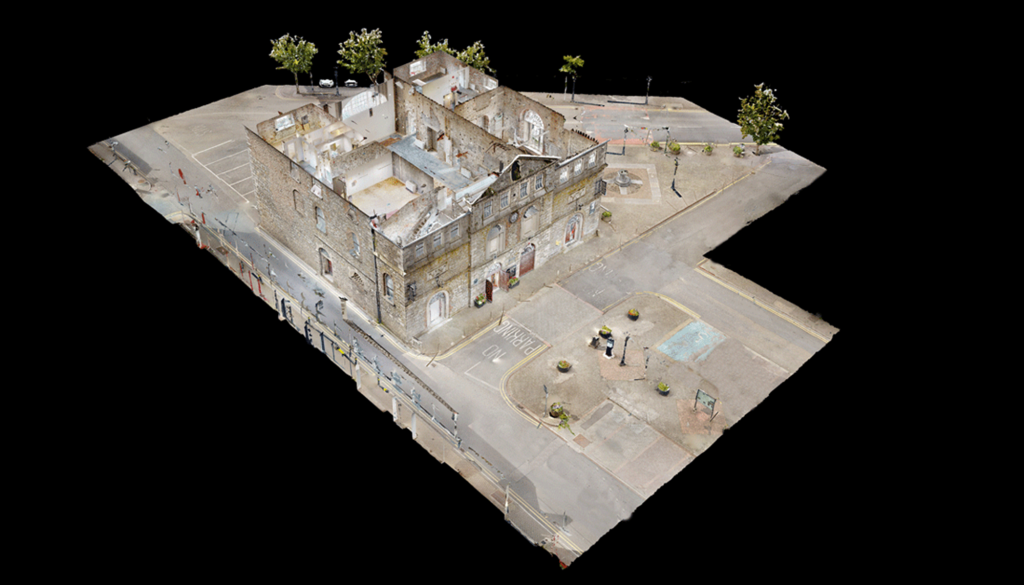
Managing Exterior Data for Improved Processing, Dollhouse Accuracy and Point Cloud Outputs
Overview
The 2D Trim Tool in the Matterport Capture app for iPad is used to define the intended boundary of a model during capture. It is particularly valuable during exterior scanning where unwanted environmental data can increase processing time and reduce model quality.
Applying trims correctly helps produce cleaner models, improves visual presentation in Dollhouse View and reduces unnecessary geometry being included in certain exported deliverables.
Learning Objectives
After completing this section, you should be able to:
- Understand when the 2D Trim Tool should be applied.
- Improve model processing efficiency.
- Reduce unwanted external geometry.
- Predict how trim decisions influence MatterPak outputs.
- Understand the limitations of trims in relation to E57 exports.
What Does the 2D Trim Tool Do?
The 2D Trim Tool allows the operator to define areas of captured data that should not be included in the processed model.
Typical uses include:
- Removing excess exterior surroundings.
- Excluding roads, gardens, neighbouring buildings and sky artefacts.
- Controlling unwanted LiDAR returns.
- Improving the appearance and navigation of Dollhouse View.
A disciplined trimming workflow often results in:
✓ Faster processing
✓ Cleaner navigation
✓ Reduced visual clutter
✓ Improved presentation quality
Windows, Mirrors and Trims – Impact on Point Cloud Deliverables
E57 Export
For E57 point cloud exports, window, mirror and trim markings do not alter the exported point cloud.
This means:
- All captured point data remains available.
- No points are removed because of trim, mirror or window markings.
- The E57 export reflects captured scan data rather than visual processing decisions.
MatterPak (.XYZ) Export
MatterPak point cloud generation behaves differently.
When creating the .XYZ point cloud:
- Points located behind window markings are removed.
- Points located behind mirror markings are removed.
- Points located behind trim boundaries are removed.
- No replacement points are generated on glass or mirror surfaces.
Practical Result
If exterior scenery was visible through glazing before marking:
- That exterior information will not appear in the MatterPak point cloud.
- The glazing itself will not generate point data.
- Open views beyond windows will effectively become empty space within the exported dataset.
CaptureTrain Recommended Workflow
- Complete scanning before applying trims.
- Review Dollhouse and Floor Plan views.
- Add trims conservatively.
- Mark windows and mirrors only where necessary.
- Consider final deliverables before processing:
- Virtual Tour only
- MatterPak
- E57
- BIM/CAD workflows
- Survey deliverables
Training Note
Incorrect trimming rarely affects the visual tour dramatically but may significantly influence downstream workflows such as CAD extraction, modelling and point cloud usage.
Always evaluate trims in the context of the intended deliverable.
Related Manual Articles
- Window Tool
- Mirror Tool
- Exterior Capture Workflow
- Preparing Spaces for MatterPak Export
- Understanding E57 Deliverables