Tag: scanning
-
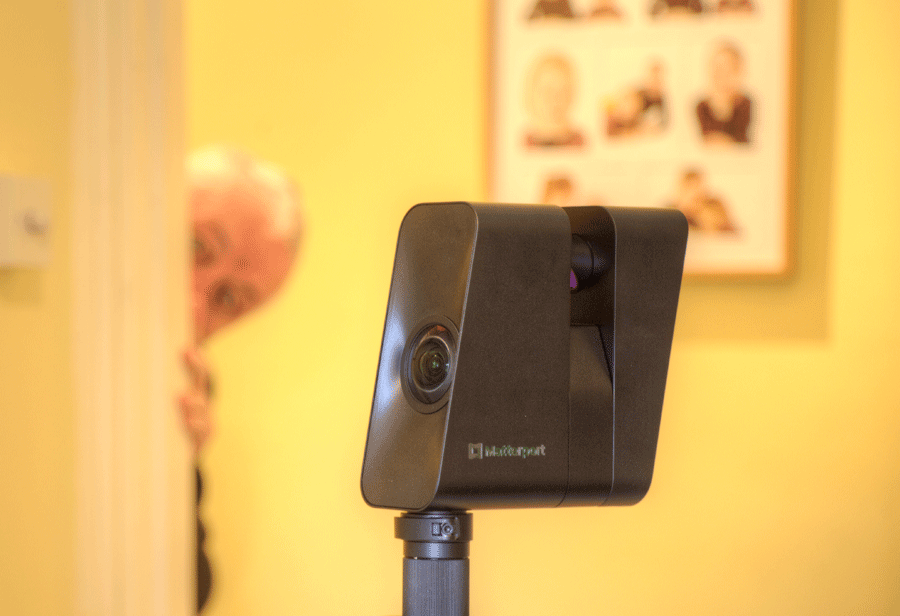
You have a choice when capturing with the Matterport Pro 3 LiDAR camera. Either you stick with the camera and stay behind it, or you leave the area and hide from view. If sticking it is worth noting that the Pro 3 rotates in four segments, with a short pause in between. You really need…
-
Errors created by Similar locations on different floors Featureless corridors Repeating patterns Highly reflective curved surfaces System Errors Scans misplaced Placing scans on the wrong floor Error messages Mis-alignment of model
-
Once enabled, choose to blur faces during Space processing automatically. The accuracy of the results depends on a variety of factors. Assists with GDPR compliance Manual blurring in post-production is also available.
-
Managing Exterior Data for Improved Processing, Dollhouse Accuracy and Point Cloud Outputs Overview The 2D Trim Tool in the Matterport Capture app for iPad is used to define the intended boundary of a model during capture. It is particularly valuable during exterior scanning where unwanted environmental data can increase processing time and reduce model quality.…
-
Mark windows and mirrors as soon as possible to optimise the quality of the model. Choose Windows and add one with the Plus sign. Runs of windows in a wall can be treated as one. Where there are doors in the glazing, do not mark if you wish to continue scanning the other side and…
-
Areas without data are black and featureless Areas with sufficient data show detail Black flecking indicated less scan density Scan behind counters, desks, furniture to create the optimum ‘Doll House’ effect These scans can be hidden in the edit
-
You must be able to see the previous scan point Choose a path that reflects the route a person would naturally take Scan every 8 or 9 feet -2 meters for a good virtual tour experience. Scans can be much further apart when for example you wish to connect two buildings on the one site.…
-
Capture must be continuous Generally, start at the entrance No jumping from area to area Doors Ensure doors you wish to travel through in the virtual tour are wedged open Use Stairs You must use stairs or ramps to go up or down a floor You can return to areas You may for instance scan…
-
Three levels of scanning: Standard Density takes <20s Suitable where the primary asset will be the virtual tour. Medium Density takes <45s Useful where a greater amount of data is required with a reasonable scan time. High Density takes <2 minutes Use when the primary purpose is the generation of an E57 point cloud file.…