Tag: camera
-

Camera reflections are a small detail, but they can have a big impact on immersion. When someone is walking through a space, especially a home, anything that reminds them they’re looking at a scan instead of being there can pull them out of the experience. Remove Camera from Reflections runs automatically during model processing after…
-
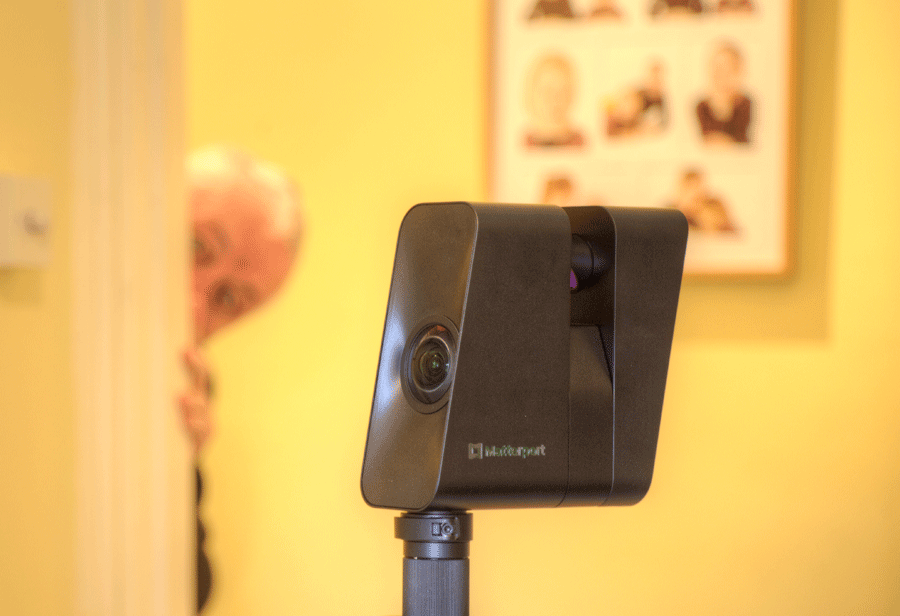
You have a choice when capturing with the Matterport Pro 3 LiDAR camera. Either you stick with the camera and stay behind it, or you leave the area and hide from view. If sticking it is worth noting that the Pro 3 rotates in four segments, with a short pause in between. You really need…
-
Can be used for speedy weekly site progress reports*. Camera can be used upside down*. Automatically rotates image to right way up*. Minimum focus distance 0.4m* – recommended 0.5m* Use in challenging locations ‘Waterproof’ IPX8 to 5m.* Mix with Pro3 to create a specific model*. Note – eliminates ability to download point cloud etc. Use…
-
The dolly is a set of wheels fitted to the tripod Reduces operator fatigue on large projects Speeds capture Prevents tripod falling through mesh floors in industrial and processing locations Important Note Always remove camera from tripod before fitting or removing the dolly.
-
Connect Your Pro 3 Camera Having fully charged the battery put it into the base of the camera. Hold in the button on the back of the camera for 10 seconds. Go to Settings on the iPad. Choose Wi-Fi. It may be connected to your office/home Wi-Fi. Switch off Wi-Fi. Switch Wi-Fi on again. Wait…
-
Connect to Pro 3 to iPad Open Matterport App Settings – bottom left of iPad Firmware – update
-
Log iPad into to your buildings Wi-Fi: iPad – General – Software Update Check and update if required Matterport Capture App Go to App Store Choose your icon/image top right Scroll to Matterport App Update if required
-
Before you start capture: Download the Matterport Capture App Update iPad software Update Camera Firmware Purchase Matterport Subscription Minimum Professional Switch on camera Use Wi-Fi to connect the iPad to the camera Open Capture App Add model
-
We favour the iPad Pro over Android tablets because of its graphic processing ability Adequate performance: For capturing smaller models E.G. 3-bed semis 11-inch iPad Pro Wi-Fi version GB RAM – 256 GB Storage Better Performance: For capturing larger models and scanning at High Density 16GB RAM – 1 or 2 TB Storage Options: 12.9-inch…